
Transparent PNG Stickers with Nano Banana Pro and Gemini interactions API
Generating images is easy. Getting clean transparent backgrounds for actual use—stickers, overlays, print-on-demand—is harder than it should be.
This guide shows how to generate production-ready transparent stickers using the Gemini Interactions API. The trick: generate on chromakey green, strip it with HSV detection.
Workflow:
- Generate an image with a chromakey green (#00FF00) background using Gemini Pro 3 Image Preview (Nano Banana Pro)
- Use HSV color space detection to accurately remove all green shades
- Apply morphological cleanup to remove edge artifacts
- Save as a proper transparent PNG
Prerequisites:
- Install dependencies:
pip install google-genai pillow scipy - Set your
GEMINI_API_KEYenvironment variable
Notebook available on GitHub
Why Chromakey Instead of ML Background Removal?
- ML Background Removal: Uses extra model call to remove the background. Slower and more expensive. Edge Quality can be hit or miss.
- Chromakey + HSV: Uses a chromakey green background. Faster, cheaper, and more predictable. Excellent Edge Quality with white outline.
When you control generation, prompting for a specific background color beats running another model. Faster, cheaper, and more predictable.
Setup
First, let's install the required dependencies and set up the Gemini client.
# Install dependencies (uncomment if needed)
# !pip install google-genai pillow scipy

import io
import base64
import colorsys
from google import genai
from PIL import Image, ImageFilter, ImageMorph
import numpy as np

# Initialize the Gemini client
client = genai.Client()

# Model for image generation
MODEL_ID = "gemini-3-pro-image-preview"
Helper Functions
We'll create helper functions using HSV color space for more robust green screen detection that catches all shades of green.
def decode_image(base64_data: str) -> Image.Image:
    """Decode base64 image data to PIL Image."""
    image_bytes = base64.b64decode(base64_data)
    return Image.open(io.BytesIO(image_bytes))


def rgb_to_hsv_array(rgb_array: np.ndarray) -> np.ndarray:
    """Convert RGB array to HSV array efficiently."""
    # Normalize RGB to 0-1 range
    rgb_normalized = rgb_array.astype(np.float32) / 255.0

    r, g, b = rgb_normalized[:, :, 0], rgb_normalized[:, :, 1], rgb_normalized[:, :, 2]

    max_c = np.maximum(np.maximum(r, g), b)
    min_c = np.minimum(np.minimum(r, g), b)
    delta = max_c - min_c

    # Hue calculation
    h = np.zeros_like(max_c)

    # When max == r
    mask_r = (max_c == r) & (delta != 0)
    h[mask_r] = (60 * ((g[mask_r] - b[mask_r]) / delta[mask_r]) + 360) % 360

    # When max == g
    mask_g = (max_c == g) & (delta != 0)
    h[mask_g] = (60 * ((b[mask_g] - r[mask_g]) / delta[mask_g]) + 120)

    # When max == b
    mask_b = (max_c == b) & (delta != 0)
    h[mask_b] = (60 * ((r[mask_b] - g[mask_b]) / delta[mask_b]) + 240)

    # Saturation calculation
    s = np.zeros_like(max_c)
    s[max_c != 0] = delta[max_c != 0] / max_c[max_c != 0]

    # Value is just max
    v = max_c

    return np.stack([h, s * 100, v * 100], axis=-1)


def remove_green_screen_hsv(
    image: Image.Image,
    hue_center: float = 120,
    hue_range: float = 25,
    min_saturation: float = 75,
    min_value: float = 70,
    dilation_iterations: int = 2,
    erosion_iterations: int = 0
) -> Image.Image:
    """
    Remove green screen using HSV color space for better detection.

    HSV is much better for detecting color ranges because it separates
    hue (color) from saturation (intensity) and value (brightness).
    """
    # Convert to RGBA if not already
    if image.mode != 'RGBA':
        image = image.convert('RGBA')

    # Convert to numpy array
    data = np.array(image)
    rgb = data[:, :, :3]

    # Convert to HSV
    hsv = rgb_to_hsv_array(rgb)
    h, s, v = hsv[:, :, 0], hsv[:, :, 1], hsv[:, :, 2]

    # Calculate hue distance (accounting for circular nature of hue)
    hue_diff = np.abs(h - hue_center)
    hue_diff = np.minimum(hue_diff, 360 - hue_diff)

    # Create mask for green pixels
    # Green if: hue is in range AND saturation is high enough AND value is high enough
    green_mask = (
        (hue_diff < hue_range) &
        (s > min_saturation) &
        (v > min_value)
    )

    # Apply morphological cleanup to remove edge artifacts
    if dilation_iterations > 0 or erosion_iterations > 0:
        from scipy import ndimage

        # Dilate the mask to catch anti-aliased edge pixels
        if dilation_iterations > 0:
            green_mask = ndimage.binary_dilation(green_mask, iterations=dilation_iterations)

        # Optionally erode back (removes isolated noise)
        if erosion_iterations > 0:
            green_mask = ndimage.binary_erosion(green_mask, iterations=erosion_iterations)

    # Make green pixels transparent
    alpha = data[:, :, 3].copy()
    alpha[green_mask] = 0
    data[:, :, 3] = alpha

    return Image.fromarray(data)


def remove_green_screen_aggressive(
    image: Image.Image,
    green_threshold: float = 1.2,
    edge_pixels: int = 0  # Set to 0 to avoid eating into white outline
) -> Image.Image:
    """
    Aggressive green removal that detects any pixel where green dominates.

    This catches even darker or lighter greens, shadows with green tint, etc.
    """
    if image.mode != 'RGBA':
        image = image.convert('RGBA')

    data = np.array(image)
    r, g, b = data[:, :, 0].astype(float), data[:, :, 1].astype(float), data[:, :, 2].astype(float)

    # A pixel is "green" if green channel significantly exceeds red and blue
    # This catches all shades of green including shadows
    rb_max = np.maximum(r, b) + 1  # +1 to avoid division by zero
    green_ratio = g / rb_max

    # Also check that green is the dominant channel
    green_dominant = (g > r) & (g > b)

    # Combined mask
    green_mask = (green_ratio > green_threshold) & green_dominant

    # Expand mask to catch edge pixels
    if edge_pixels > 0:
        from scipy import ndimage
        green_mask = ndimage.binary_dilation(green_mask, iterations=edge_pixels)

    # Apply transparency
    alpha = data[:, :, 3].copy()
    alpha[green_mask] = 0
    data[:, :, 3] = alpha

    return Image.fromarray(data)


def cleanup_edges(image: Image.Image, threshold: int = 128) -> Image.Image:
    """
    Clean up semi-transparent edge pixels by making them fully transparent or opaque.

    This removes the "halo" effect from anti-aliased edges.
    """
    if image.mode != 'RGBA':
        return image

    data = np.array(image)
    alpha = data[:, :, 3]

    # Make semi-transparent pixels either fully transparent or fully opaque
    alpha[alpha < threshold] = 0
    alpha[alpha >= threshold] = 255

    data[:, :, 3] = alpha
    return Image.fromarray(data)


def save_transparent_png(image: Image.Image, filename: str):
    """Save image as PNG with transparency preserved."""
    if image.mode != 'RGBA':
        image = image.convert('RGBA')
    image.save(filename, 'PNG')
    print(f"✅ Saved: {filename}")
Generate a Sticker with Chromakey Green Screen
The key is to instruct Gemini to generate the image with a chromakey green background. We use specific prompts to ensure clean edges and no green spill.
def load_image_as_content(image_path: str) -> dict:
    """
    Load an image from a file path and return it as a content block for the API.
    """
    import os
    import mimetypes

    # Determine mime type from file extension
    mime_type, _ = mimetypes.guess_type(image_path)
    if mime_type is None:
        # Default to JPEG if unknown
        mime_type = "image/jpeg"

    # Read and base64 encode the image
    with open(image_path, "rb") as f:
        image_data = base64.b64encode(f.read()).decode("utf-8")

    return {
        "type": "image",
        "data": image_data,
        "mime_type": mime_type
    }


def generate_sticker(
    prompt: str,
    aspect_ratio: str = "1:1",
    image_size: str = "2K",
    input_images: list[str] | None = None
) -> Image.Image:
    """
    Generate a sticker-style image with chromakey green background.
    """
    # Optimized prompt for chromakey extraction
    enhanced_prompt = f"""Create a sticker illustration of: {prompt}

CRITICAL CHROMAKEY REQUIREMENTS:
1. BACKGROUND: Solid, flat, uniform chromakey green color. Use EXACTLY hex color #00FF00 (RGB 0, 255, 0).
   The entire background must be this single pure green color with NO variation, NO gradients, NO shadows, NO lighting effects.

2. WHITE OUTLINE: The subject MUST have a clean white outline/border (2-3 pixels wide) separating it from the green background.
   This white border prevents color bleeding between the subject and background.

3. NO GREEN ON SUBJECT: The subject itself should NOT contain any green colors to avoid confusion with the chromakey.
   If the subject needs green (like leaves), use a distinctly different shade like dark forest green or teal.

4. SHARP EDGES: The subject should have crisp, sharp, well-defined edges - no soft or blurry boundaries.

5. CENTERED: Subject should be centered with padding around all sides.

6. STYLE: Vibrant, clean, cartoon/illustration sticker style with bold colors.

This is for chromakey extraction - the green background will be removed programmatically."""

    print(f"🎨 Generating sticker: {prompt}")
    print(f"   Resolution: {image_size}")

    # Build the input content
    # When input_images are provided, create a list with image content blocks followed by text
    if input_images:
        print(f"   Input images: {len(input_images)} image(s)")
        input_content = []
        for img_path in input_images:
            print(f"   - Loading: {img_path}")
            input_content.append(load_image_as_content(img_path))
        # Add the text prompt as the final content block
        input_content.append({"type": "text", "text": enhanced_prompt})
    else:
        # No input images, just use the text prompt directly
        input_content = enhanced_prompt

    # Call Gemini Interactions API
    interaction = client.interactions.create(
        model=MODEL_ID,
        input=input_content,
        generation_config={
            "image_config": {
                "aspect_ratio": aspect_ratio,
                "image_size": image_size  # Use higher res for better edges
            }
        }
    )

    # Extract the generated image
    for output in interaction.outputs:
        if output.type == "image":
            print(f"✅ Image generated (mime_type: {output.mime_type})")
            return decode_image(output.data)

    raise ValueError("No image was generated")
Create a Sticker End-to-End
Let's put it all together: generate, remove green screen with HSV detection, apply aggressive cleanup, and save.
def create_sticker(
    prompt: str,
    output_filename: str,
    aspect_ratio: str = "1:1",
    image_size: str = "2K",
    save_raw: bool = False,
    input_images: list[str] | None = None
) -> Image.Image:
    """
    Complete workflow to create a transparent sticker.

    Uses a multi-pass approach:
    1. Generate with optimized chromakey prompt
    2. HSV-based green removal (catches color range)
    3. Aggressive green removal (catches remaining green tints)
    4. Edge cleanup to remove halos
    """
    import os

    # Step 1: Generate image with green screen
    raw_image = generate_sticker(prompt, aspect_ratio, image_size, input_images)

    # Optionally save raw image for debugging
    if save_raw:
        raw_filename = output_filename.replace('.png', '_raw.png')
        raw_image.save(raw_filename)
        print(f"📸 Raw image saved: {raw_filename}")

    # Step 2: HSV-based green removal
    print("🔧 Pass 1: HSV-based green removal...")
    transparent_image = remove_green_screen_hsv(
        raw_image,
        hue_center=120,       # Pure green hue
        hue_range=25,         # Tight range around pure green
        min_saturation=75,    # Only highly saturated greens (preserves logo greens)
        min_value=70,         # Only bright greens
        dilation_iterations=2,  # Catch anti-aliased edge pixels
        erosion_iterations=0
    )

    # Step 3: Skip aggressive removal (disabled - causes speckles in subject)
    # transparent_image = remove_green_screen_aggressive(...)

    # Step 4: Clean up any semi-transparent edge artifacts
    print("✨ Cleaning up edges...")
    transparent_image = cleanup_edges(transparent_image, threshold=64)

    # Step 5: Save as PNG
    save_transparent_png(transparent_image, output_filename)

    return transparent_image
Generate Stickers
Let's generate some example stickers!
prompt = "a cute happy cat with big eyes"

sticker1 = create_sticker(
    prompt=prompt,
    output_filename="../assets/cat.png",
    image_size="2K",
    save_raw=True
)| Raw (Green Screen) | Processed (Transparent) |
|---|---|
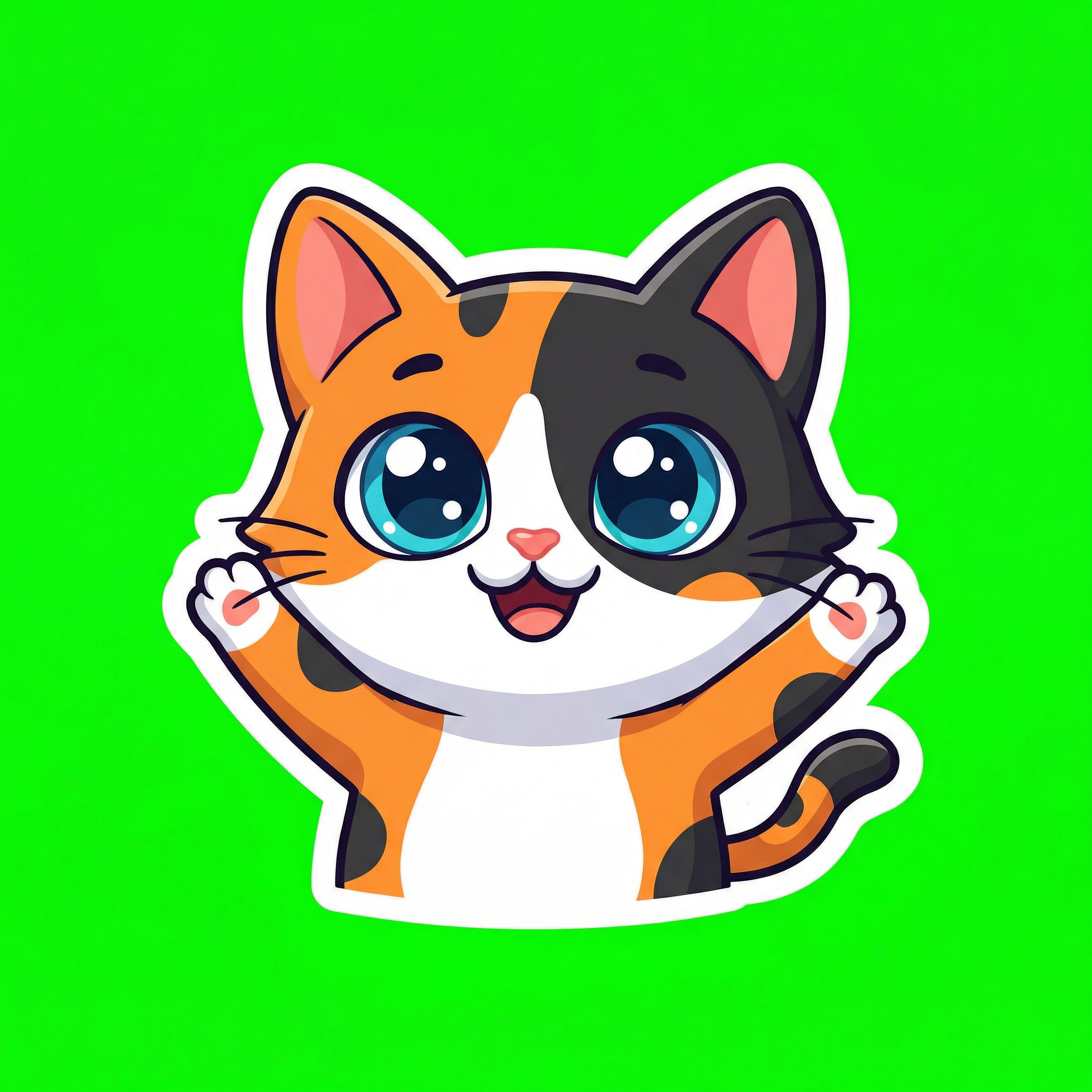 | 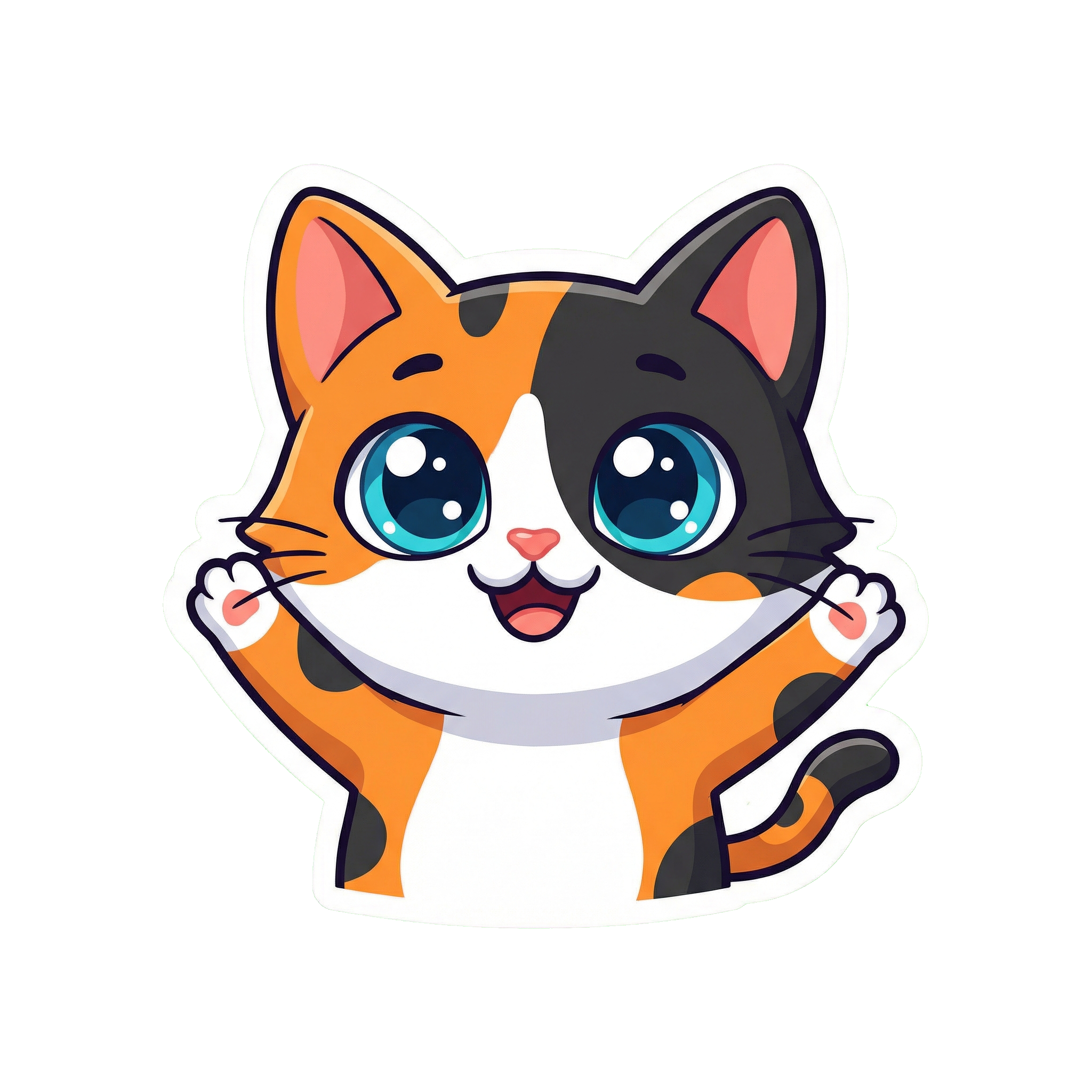 |
prompt = "Developer wearing a Google DeepMind hoodie looking like me, use the attached images of me and the new Google DeepMind logo."
input_images = ["../assets/headshot.png", "../assets/logo.png"]

sticker1 = create_sticker(
    prompt=prompt,
    input_images=input_images,
    output_filename="../assets/developer.png",
    image_size="2K",
    save_raw=True
)| Raw (Green Screen) | Processed (Transparent) |
|---|---|
 |  |
Prompt Engineering Tips
- Always specify "sticker-style" or "illustration"
- Request "clear defined edges" for easier cutout
- Specify the background color explicitly
- Ask for the subject to be "centered with padding"
- Works best with subjects that don't contain green
Using Your Stickers
The generated PNG files have proper alpha channels and can be used in:
- Design software (Figma, Photoshop, etc.)
- Presentation tools
- Chat applications
- Print-on-demand services
- Mobile apps
Thanks for reading! If you have any questions or feedback, please let me know on Twitter or LinkedIn.