
Controlling Android with Gemini 3.7 Flash and 150 lines of Python
Last week we launched Gemini 3.7 Flash, our first hybrid reasoning model built for coding and agentic workflows.
Its multimodal reasoning and fast turn-by-turn latency make it uniquely suited for Computer Use. Instead of waiting several seconds between taps, the model inspects screenshots, plans the next step, and emits precise coordinates fast enough to keep device control loops interactive.
To test this on a real mobile interface, I gave it a task: "play 1 round of Wordle at wordle.global/en/unlimited".
Running on an Android emulator, it opened Chrome, cleared tutorial popups, played an opening word, read the color-coded feedback with thinking, and solved the game in 2 guesses.
The problem with mobile automation
Mobile test automation has been painful for 15 years.
Appium, Espresso, and UIAutomator all depend on accessibility trees, element IDs, and XPath selectors. When a product team runs an A/B test, redesigns a checkout card, or adds a marketing banner, the test script breaks.
Webviews and dynamic canvas games are even worse because they often expose zero accessibility nodes to ADB.
Gemini 3.7 Flash allows you to approach this almost human like. The model looks at the raw screenshot, figures out where elements sit, and returns normalized 0–999 coordinates for clicks, text input, and key presses.
How the agent loop works
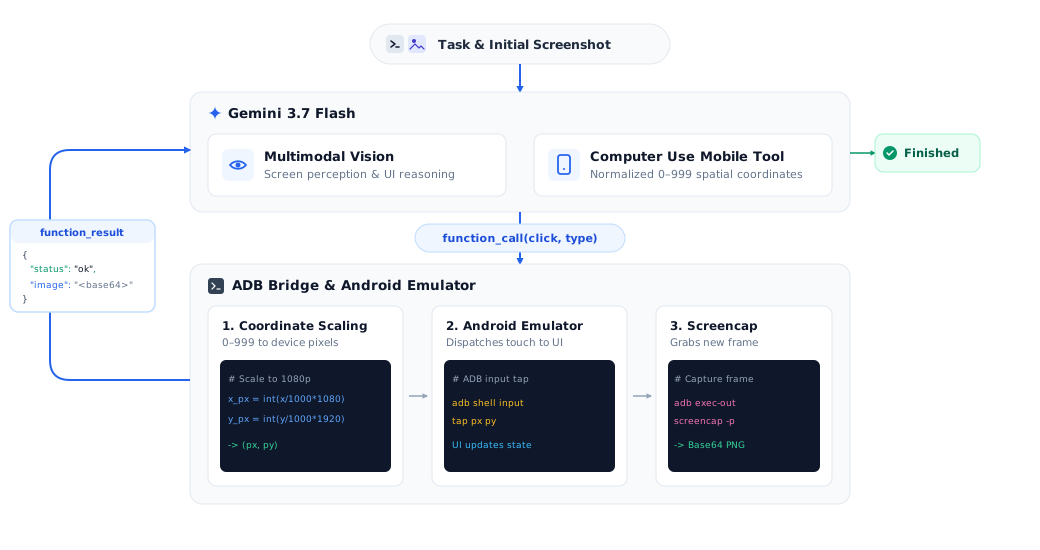
The Agent connects to an Android emulator over ADB and runs a continuous loop:
- Capture: ADB takes a screenshot (
adb exec-out screencap -p) and encodes it as Base64. - Evaluate: Gemini 3.7 Flash inspects the image and plans its next move.
- Emit action: Gemini returns a tool call with normalized coordinates and intent (e.g.
click(x=884, y=190)). - Execute: The Python script maps
0–999to physical pixels (1080x1920) and firesadb shell input tap <x> <y>. - Continue: The client grabs a fresh screenshot and sends it back in
function_resultwithprevious_interaction_id.
Here is the core loop using the google-genai Python SDK:
from google import genai
import base64

client = genai.Client()

# 1. Package the prompt with the initial device screenshot
user_input = [
    {"type": "text", "text": "play 1 round of Wordle at wordle.global/en/unlimited"},
    {"type": "image", "data": base64.b64encode(bridge.screenshot()).decode(), "mime_type": "image/png"}
]

previous_interaction_id = None

while True:
    # 2. Call Gemini 3.7 Flash with mobile computer use and thinking
    interaction = client.interactions.create(
        model="gemini-3.7-flash",
        system_instruction="You are operating an Android device. Use tools to finish the task.",
        input=user_input,
        tools=[{"type": "computer_use", "environment": "mobile"}],
        generation_config={"thinking_level": "medium"},
        previous_interaction_id=previous_interaction_id,
    )

    # 3. Stop if the model produced text rather than a tool call
    function_calls = [s for s in interaction.steps if s.type == "function_call"]
    if not function_calls:
        print("Task finished:", interaction.output_text)
        break

    # 4. Dispatch actions (scales 0-999 coordinates to screen pixels over ADB)
    function_responses = []
    for fc in function_calls:
        bridge.execute(fc.name, **fc.arguments)

        # 5. Capture new screen state and return result to continue session
        function_responses.append({
            "type": "function_result",
            "name": fc.name,
            "call_id": fc.id,
            "result": [
                {"type": "text", "text": '{"status": "ok"}'},
                {"type": "image", "data": base64.b64encode(bridge.screenshot()).decode(), "mime_type": "image/png"}
            ]
        })

    user_input = function_responses
    previous_interaction_id = interaction.id
The full implementation, including the ADBBridge coordinate scaler, device setup scripts, and CLI runner, is in the gemini-android-computer-use-quickstart repository.
Playing 1 round of Wordle
Here is what happened during the Wordle session.
1. Launch and navigation
The agent started on the home screen, opened Chrome by package name, opened a new tab, and typed the URL:
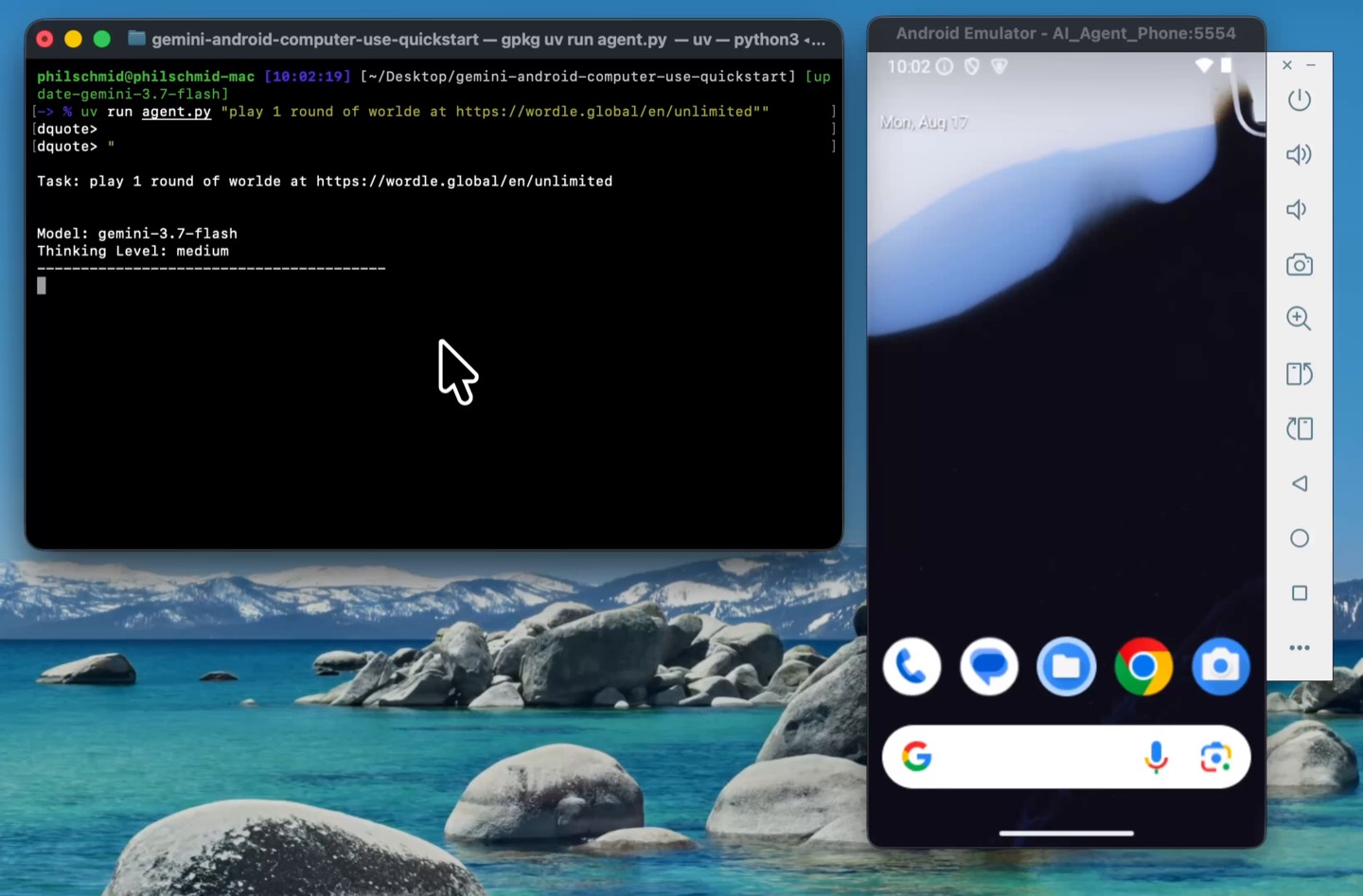
[function_call] open_app({'package_name': 'com.android.chrome', 'intent': 'Open Chrome browser'})
[function_call] click({'x': 270, 'y': 180, 'intent': 'Open a new tab in Chrome'})
[function_call] type({'text': 'https://wordle.global/en/unlimited', 'press_enter': True, 'intent': 'Type Wordle Unlimited URL and navigate'})
2. Clearing modal overlays
Two popups blocked the game board on page load: a "How to Play" tutorial and a stats dialog.
The model spotted the close icons and clicked them:
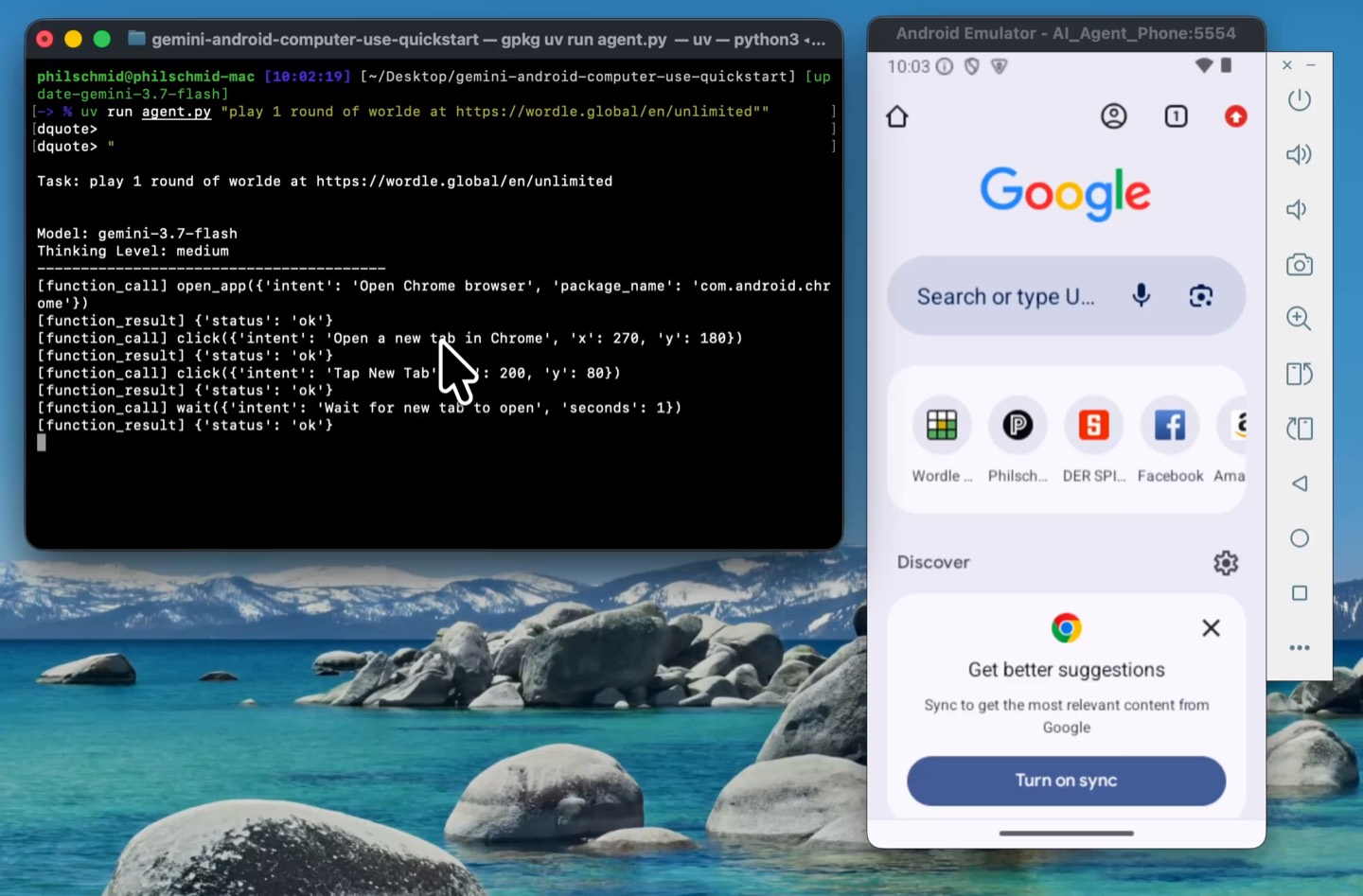
[function_call] click({'x': 884, 'y': 190, 'intent': 'Close the How to Play modal'})
[function_call] click({'x': 884, 'y': 256, 'intent': 'Close stats modal'})
3. Playing guess 1 (CRANE)
With a clear board, it typed a standard vowel-heavy opener: C - R - A - N - E.
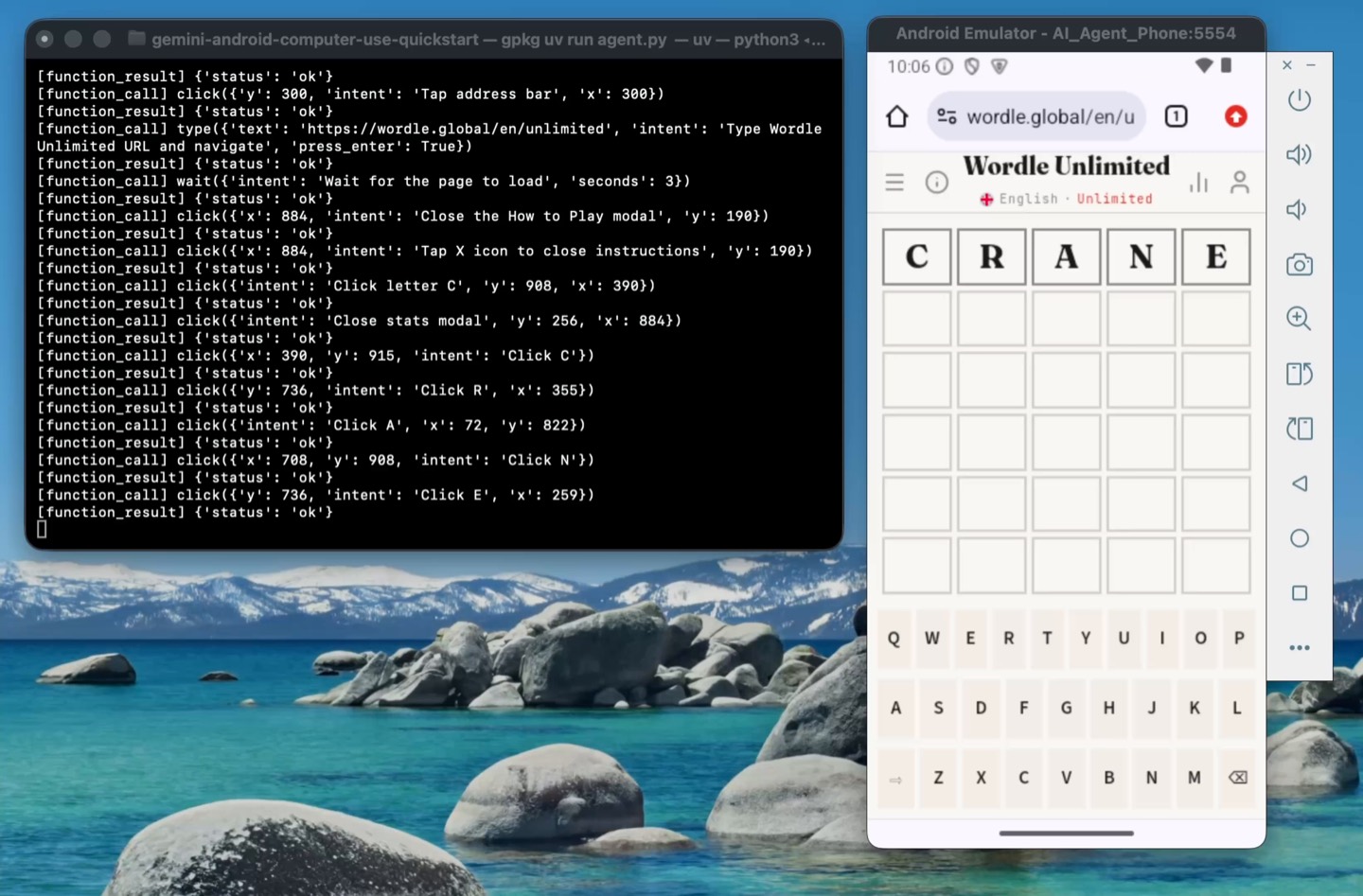
[function_call] click({'x': 390, 'y': 915, 'intent': 'Click C'})
[function_call] click({'x': 355, 'y': 736, 'intent': 'Click R'})
[function_call] click({'x': 72,  'y': 822, 'intent': 'Click A'})
[function_call] click({'x': 708, 'y': 908, 'intent': 'Click N'})
[function_call] click({'x': 259, 'y': 736, 'intent': 'Click E'})
[function_call] press_key({'key': 'Enter', 'intent': 'Press Enter key'})
4. Reading tile colors with thinking
The game returned feedback:
- C turned yellow (in the word, wrong spot).
- R, A, N turned gray (not in the word).
- E turned green (correct spot at index 5).
Gemini checked words ending in E that contain C somewhere in the middle without R, A, or N. It picked SPICE. All 5 tiles turned green. The model saw the victory popup and stopped:
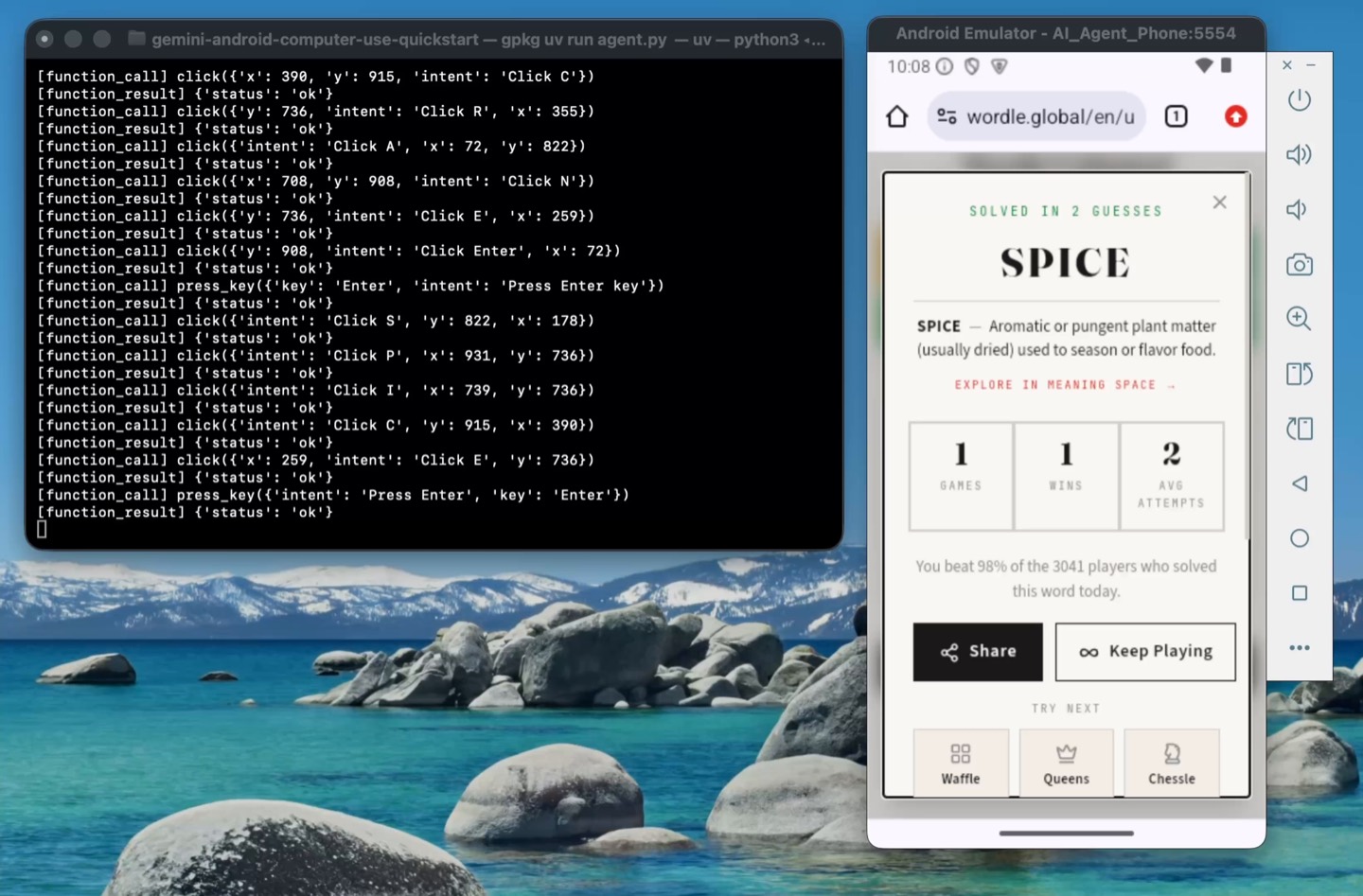
Agent finished: I have completed a round of Wordle Unlimited at https://wordle.global/en/unlimited, successfully solving the puzzle ("SPICE") in 2 guesses.What you can build with this
Wordle is a clean visual benchmark, but the underlying loop works for any Android application.
You can use this for automated UI testing, user flow verification, exploratory bug reproduction, or general task automation. Because the model operates on raw screenshots, it works across native Android apps, webviews, and dynamic canvas interfaces without relying on accessibility IDs or DOM trees.
The complete quickstart with the emulator setup script, ADB bridge, and CLI runner is open source:
- GitHub repo: google-gemini/gemini-android-computer-use-quickstart
- Interactions API overview: Interactions API Docs
- Computer Use guide: Computer Use Guide
- Thinking documentation: Thinking in Gemini 3.7
Thanks for reading! If you have any questions or feedback, please let me know on Twitter or LinkedIn.